MCP Server
The Model Context Protocol (MCP) is a standard that allows AI assistants (like Claude) to connect to your applications.
VRTI includes a built-in MCP server that allows you to give AI assistants direct access to your treadmill. This means you can ask your AI assistant to check your stats, change settings, or even control the treadmill speed for you, all through natural language.
Configuration
The MCP Server can be enabled within VRTI’s settings.
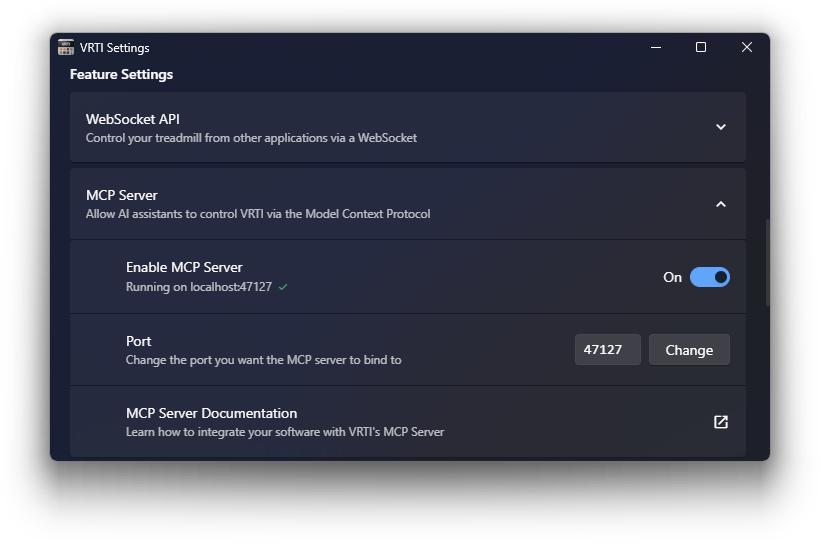
- Open VRTI Settings.
- Navigate to the MCP Server section.
- Toggle Enable MCP Server to On.
By default, the server runs on port 47127 at the following address:
http://localhost:47127/sseConnecting Clients
You can connect any MCP-compliant client to VRTI. Below are instructions for some popular clients.
To use VRTI with the Claude Desktop app, you need to edit your configuration file.
- Locate your
claude_desktop_config.jsonfile:- Windows:
%APPDATA%\Claude\claude_desktop_config.json - macOS:
~/Library/Application Support/Claude/claude_desktop_config.json
- Windows:
- Add the VRTI server configuration:
{ "mcpServers": { "VRTI": { "command": "npx", "args": [ "-y", "mcp-remote", "http://localhost:47127/sse", "--allow-http" ] } }}- Restart Claude Desktop. You should see VRTI as an available MCP server in the Claude Desktop app’s settings, in the “Connectors” section.
To use VRTI with Cursor:
- Open File > Preferences > Cursor Settings
- Navigate to Tools & MCP.
- Click + New MCP Server.
- Add the VRTI configuration to your
mcp.jsonfile:
{ "mcpServers": { "vrti": { "url": "http://localhost:47127/sse", "transport": "sse" } }}- Save your
mcp.jsonfile. You can also find this file in the$HOME/.cursor/mcp.jsondirectory. - Restart Cursor and return to the MCP settings. You should see VRTI in the list with a green indicator.
To use VRTI with gemini-cli:
- Install
gemini-cliif you haven’t already. - Open your
gemini-cliconfiguration file (usually~/.gemini/settings.json). - Add VRTI to the
mcpServersconfiguration:
{ "mcpServers": { "vrti": { "httpUrl": "http://localhost:47127/sse" } }}- Save the file. You can now use VRTI tools within
gemini-cli.
Capabilities
Once connected, the AI assistant has access to a wide range of tools and resources.
Controlling the Treadmill
The AI can actively control your treadmill and VR settings:
- Set Target Speed: “Set the treadmill to 5 km/h”
- Toggle AutoWalk: “Turn on AutoWalk”
- Speed Adjustments: “Set speed multiplier to 1.5” or “Limit my speed to 10 km/h”
- Reset Stats: “Reset my session statistics”
Monitoring
The AI can read the current state of your session:
- Current Status: “Is the treadmill running?” or “How fast am I going?”
- Statistics: “How far have I walked today?” or “Show me my monthly stats”
- Settings: “What are my current AutoWalk settings?”
Available Tools & Resources
VRTI exposes the following tools and resources to connected MCP clients.
Tools
Tools allow the AI to perform actions or fetch specific data on demand.
| Tool Name | Description |
|---|---|
vrti_set_target_speed | Set the target speed of the treadmill in km/h. |
vrti_get_treadmill_state | Get the current status (running, speed, connection) of the treadmill. |
vrti_toggle_autowalk | Enable or disable the auto walk feature. |
vrti_get_autowalk_settings | Get the current configuration for the auto walk feature. |
vrti_set_speed_multiplier | Set the auto walk speed multiplier (e.g., 1.5 for 50% faster). |
vrti_set_speed_offset | Apply a temporary speed offset (e.g., +0.5 km/h) to the auto walk speed. |
vrti_set_speed_override | Force the auto walk speed to a fixed value (or -1 to disable). |
vrti_set_speed_limit | Set the maximum speed limit for the user. |
vrti_center_yaw_lock | Recenter the Yaw Lock direction. |
vrti_toggle_yaw_lock | Enable or disable Yaw Lock. |
vrti_set_input_mode | Change the input mode (e.g., to VRChatOSC or XINPUT). |
vrti_get_statistics | Get statistics for the current ongoing session. |
vrti_reset_statistics | Reset the current session’s statistics. |
vrti_get_historic_daily_stats | Retrieve historical statistics grouped by day. |
vrti_get_historic_monthly_stats | Retrieve historical statistics grouped by month. |
vrti_get_historic_sessions | Retrieve a list of past individual sessions. |
Resources
Resources provide direct access to data that can be read by the AI to understand the current context.
| Resource URI | Description |
|---|---|
vrti://treadmill/state | JSON object containing the real-time state of the treadmill (speed, connection, etc.). |
vrti://autowalk/settings | JSON object with the current auto walk settings. |
vrti://autowalk/speed | JSON object with the current auto walk speed being sent to your game. |
vrti://statistics/current | JSON object with live statistics for the current session. |