SteamVR Controller Bindings
VRTI exposes most of its functions as SteamVR Input actions. This allows you to bind VRTI controls to any button on your VR controllers using the SteamVR Bindings UI.
Default Bindings
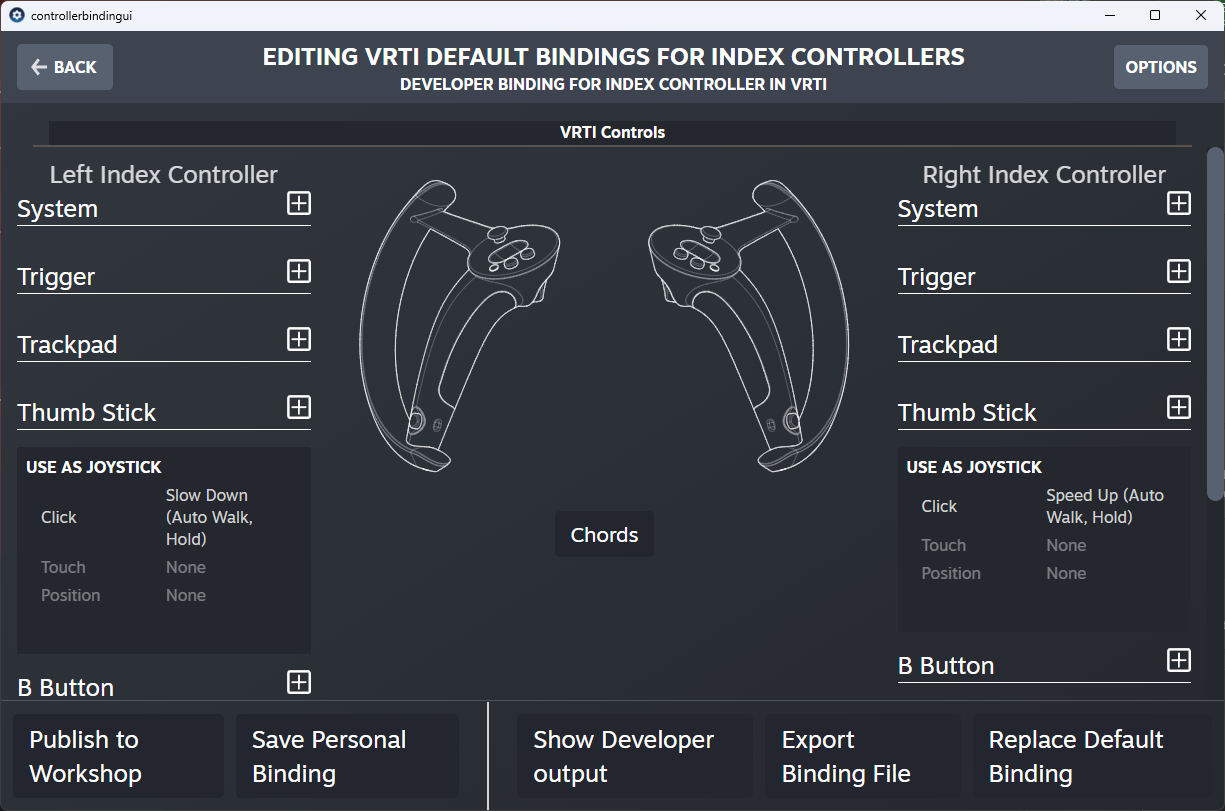
By default, VRTI comes with the following bindings:
- Left Thumbstick Click: Slow Down (Auto Walk, Hold)
- Right Thumbstick Click: Speed Up (Auto Walk, Hold)
These bindings allow you to quickly adjust your walking speed in-game without changing the treadmill speed, say to catch up with friends!
Custom Bindings
You can customize these bindings or add new ones through the SteamVR Dashboard.
- Open the SteamVR Dashboard.
- Go to Controller Bindings.
- Select VRTI.
- Change the bindings to your preference.
Available Actions
The following actions are available for binding:
Auto Walk Control
| Action | Description |
|---|---|
| Speed Up (Auto Walk, Hold) | Temporarily increases auto-walk speed while held. |
| Slow Down (Auto Walk, Hold) | Temporarily decreases auto-walk speed while held. |
| Auto Walk Enable | Enables auto-walk. |
| Auto Walk Disable | Disables auto-walk. |
| Auto Walk Toggle | Toggles auto-walk on/off. |
Treadmill Control
| Action | Description |
|---|---|
| Treadmill Start | Starts the treadmill. |
| Treadmill Stop | Stops the treadmill. |
| Treadmill Toggle | Toggles the treadmill start/stop state. |
| Treadmill Speed Up | Increases treadmill target speed by 0.5 km/h or m/h. |
| Treadmill Slow Down | Decreases treadmill target speed by 0.5 km/h or m/h. |
Yaw Control
| Action | Description |
|---|---|
| Center Yaw | Resets the yaw lock to the direction you’re currently facing. |
Speed Overrides
These actions allow you to set a fixed speed override for auto-walk, ignoring the treadmill speed.
| Action | Description |
|---|---|
| Auto Walk Speed Override: None | Disables speed override. |
| Auto Walk Speed Override: 25% | Sets auto-walk speed to 25%. |
| Auto Walk Speed Override: 50% | Sets auto-walk speed to 50%. |
| Auto Walk Speed Override: 75% | Sets auto-walk speed to 75%. |
| Auto Walk Speed Override: 100% | Sets auto-walk speed to 100%. |