VRChat & OSC Control
VRTI itself can be controlled over OSC, allowing you to control your treadmill from external applications, like VRChat! Below you will find several methods to control VRTI over OSC.
VRChat
VRTI Menu Avatar Prefab

The easiest way you can control VRTI from within VRChat, is by using VRTI’s Menu Avatar Prefab. You simply install it on your avatar using Modular Avatar: Just drag it onto your avatar, upload, and you’re good to go! This requires you to have Modular Avatar installed in your Unity project.
| Menu | Treadmill Control |
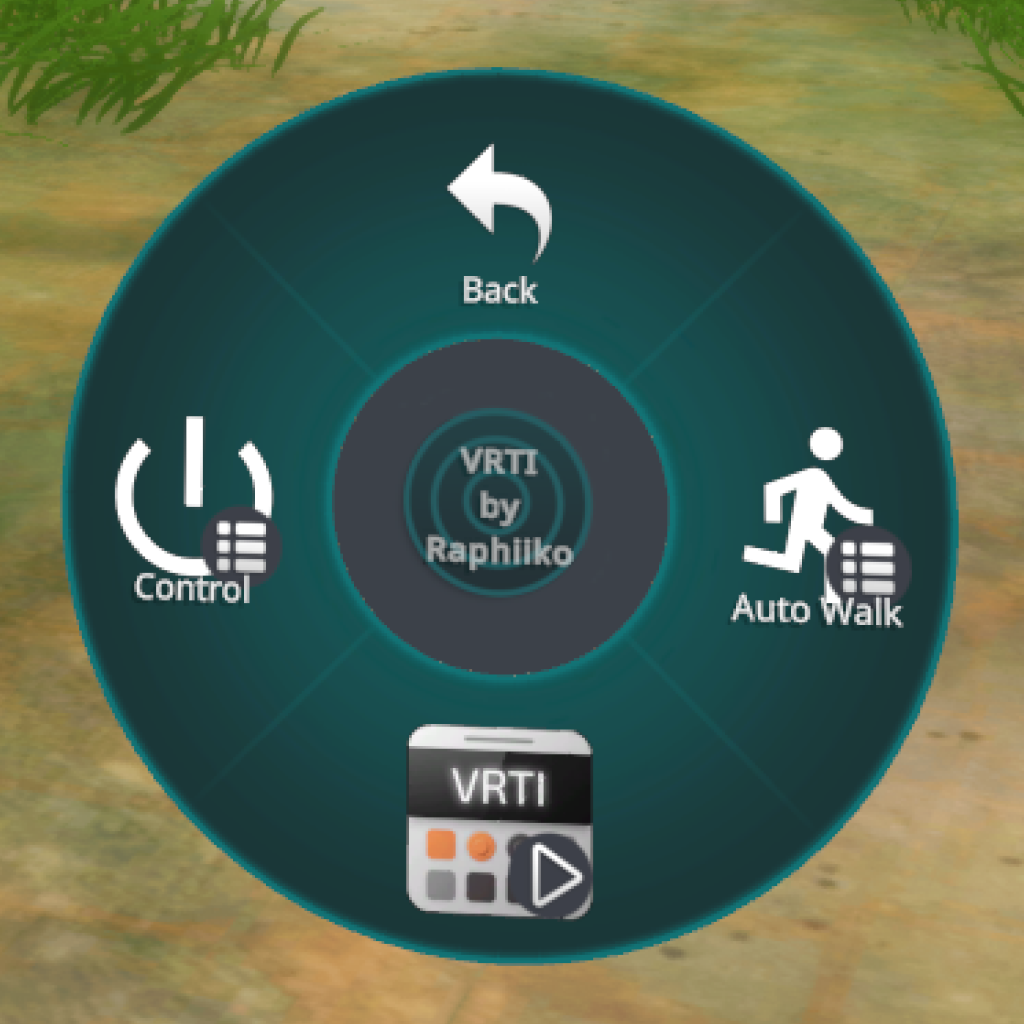 | 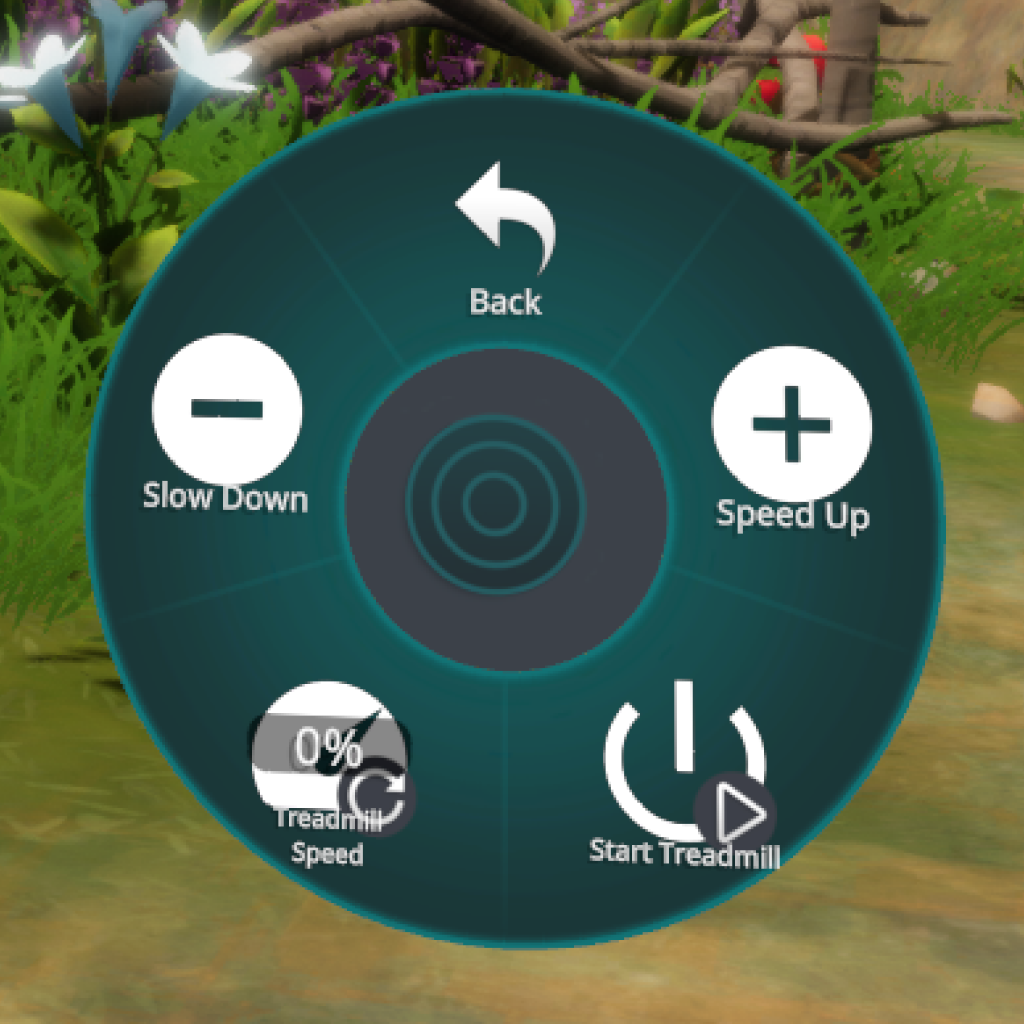 |
| Autowalk Control | Autowalk Speed Overrides |
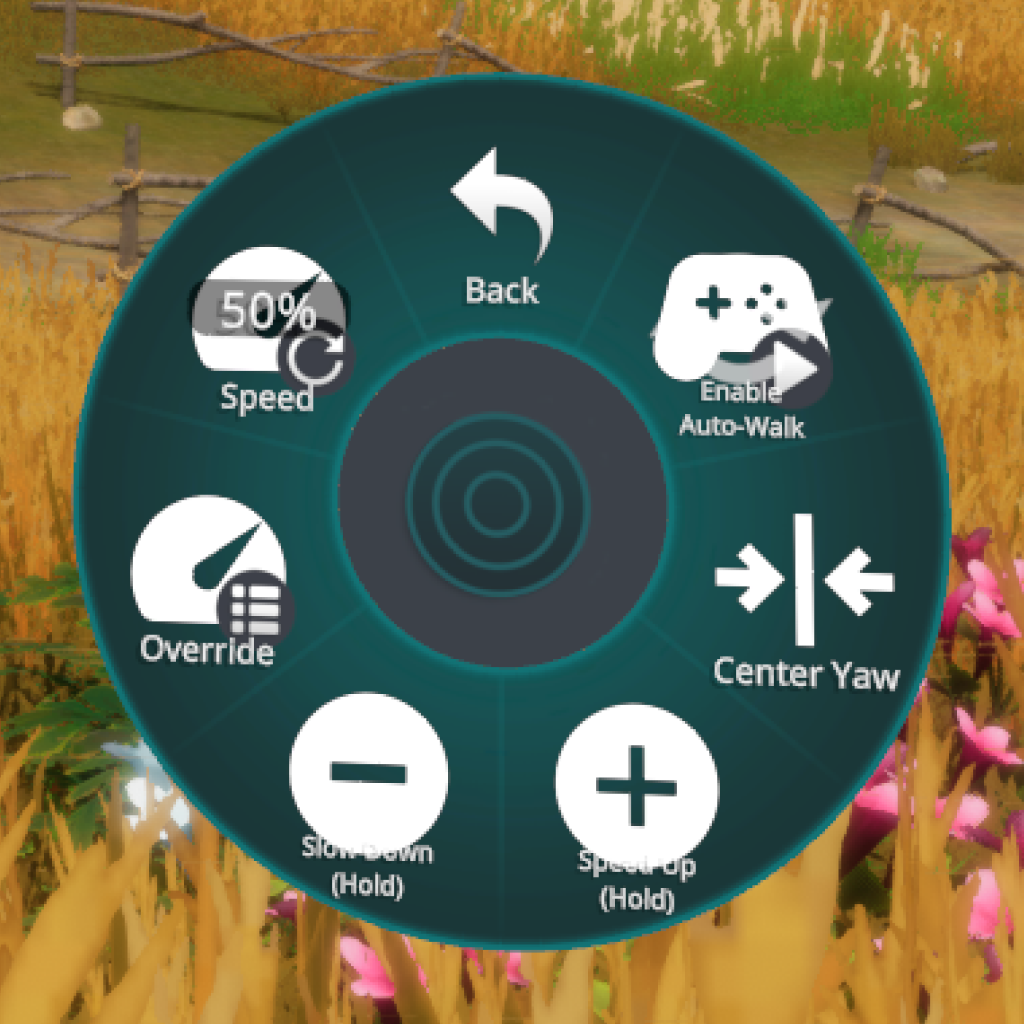 | 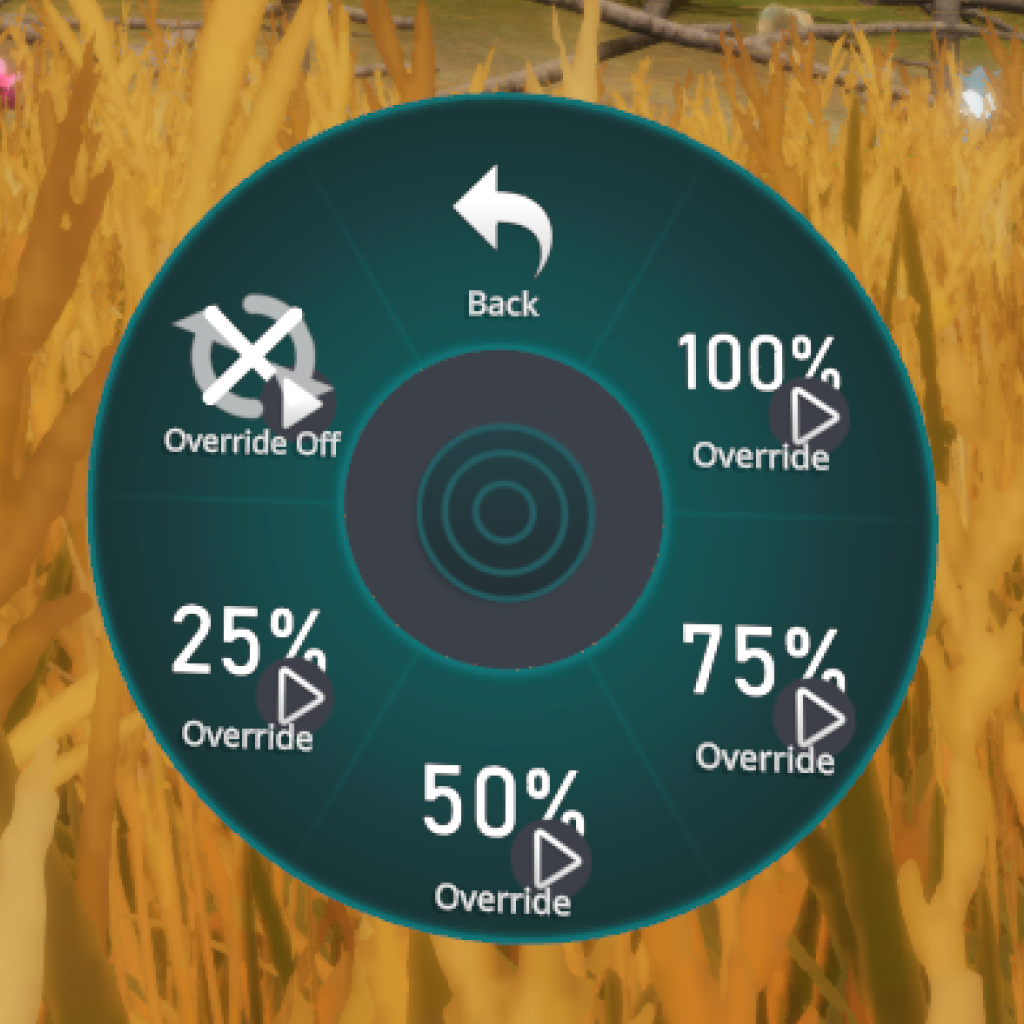 |
Add to ALCOM or VCC
Get Modular Avatar
Installation Guide
- Install Modular Avatar into your Unity project.
- Add my package listing to either:
- ALCOM (Recommended)
- VRChat Creator Companion (VCC)
- Go to your project in ALCOM or VCC, and install the latest “VRTI Avatar Menu” package.
- In the Project pane in Unity, find the
VRTI Menuprefab underPackages>VRTI Avatar Menu>Runtime. - Drag the
VRTI Menuprefab onto your avatar in the Hierarchy pane. - Upload your avatar to VRChat as usual.
Auto Walk: Speed Up & Slow Down
In your Auto Walk menu, you’ll find two buttons not found in VRTI’s own interface: “Speed Up” and “Slow Down”.
You can hold these buttons down to temporarily increase or decrease your auto walk speed. Perfect to quickly catch up with friends! This just affects your auto walk speed (the speed at which you move in-game), not your treadmill speed.
You can configure how much these buttons affect your speed in VRTI’s settings.
Note that you can also control these actions directly using your controller buttons: By default, pressing down your left stick slows you down, and pressing down your right stick speeds you up! These bindings can be changed in SteamVR’s controller bindings for VRTI.
Avatar Parameters
In case you’d like to build your own controls, here’s a list of the avatar parameters that VRTI will read and write to:
| Avatar Parameter Name | Value Type | Intended VRChat Menu Item |
|---|---|---|
VRTI/Treadmill/Enable | Boolean | Toggle |
VRTI/Treadmill/Speed | Float | Radial Puppet |
VRTI/Treadmill/SpeedUp | Boolean | Button |
VRTI/Treadmill/SlowDown | Boolean | Button |
VRTI/Walking/Enable | Boolean | Toggle |
VRTI/Walking/Speed | Float | Radial Puppet |
VRTI/Walking/YawReset | Boolean | Button |
VRTI/Walking/OffsetUp | Boolean | Button |
VRTI/Walking/OffsetDown | Boolean | Button |
VRTI/Walking/Override | Float | - |
VRTI/Walking/Override/None | Boolean | Toggle |
VRTI/Walking/Override/Preset1 | Boolean | Toggle |
VRTI/Walking/Override/Preset2 | Boolean | Toggle |
VRTI/Walking/Override/Preset3 | Boolean | Toggle |
VRTI/Walking/Override/Preset4 | Boolean | Toggle |
OSC Reference
When VRTI launches, it binds a random available UDP port to listen for incoming OSC messages.
As part of OSCQuery, it advertises its OSC server over Zeroconf/MDNS with service name _osc._udp.local.
You will need to discover it to get the port number to send your OSC messages.
OSCQuery
VRTI’s OSCQuery server also binds to a random available TCP port.
It is advertised over Zeroconf/MDNS with service name _oscjson._tcp.local.
OSC Addresses
Below you will find a list of all addresses you can write to.
/VRTI/Treadmill/Enable
Value Type: Boolean
Intended VRChat Menu Item: Toggle
Starts your treadmill when set to true, and stops it when set to false.
/VRTI/Treadmill/Speed
Type: Float
Intended VRChat Menu Item: Radial Puppet
Sets the target speed of your treadmill:
- A value of
1.0, or 100% in VRChat’s menu, corresponds to the maximum speed set in VRTI. - A value of
0.0, or 0% in VRChat’s menu, corresponds to 0.5 km/h or 0.3 m/h.
/VRTI/Treadmill/SpeedUp
Type: Boolean
Intended VRChat Menu Item: Button
When set to 1, VRTI will increase the target speed of your treadmill by 0.5 km/h or m/h.
/VRTI/Treadmill/SlowDown
Type: Boolean
Intended VRChat Menu Item: Button
When set to 1, VRTI will decrease the target speed of your treadmill by 0.5 km/h or m/h.
/VRTI/Walking/Enable
Type: Boolean
Intended VRChat Menu Item: Toggle
Enables auto-walk when set to true, and disables it when set to false.
/VRTI/Walking/Speed
Type: Float
Intended VRChat Menu Item: Radial Puppet
Sets the auto-walk speed adjustment, allowing you to walk faster or slower in-game without changing your treadmill’s speed.
- A value of
0, or 0% in VRChat’s menu, results in a 0x multiplier. - A value of
0.5, or 50% in VRChat’s menu, is the neutral position: 1.0x. - A value of
1.0, or 100% in VRChat’s menu, results in a 2.0x multiplier.
/VRTI/Walking/YawReset VR Only
Type: Boolean
Intended VRChat Menu Item: Button
Resets your walking direction to the direction you are currently are facing.
Note: This only has an effect while the yaw lock is enabled.
/VRTI/Walking/OffsetUp
Type: Boolean
Intended VRChat Menu Item: Button
Temporarily increases your walking speed by 0.25x while the button is held.
When set to 1 (button pressed), adds a +0.25x speed adjustment to your current walking speed.
When set to 0 (button released), removes the adjustment.
/VRTI/Walking/OffsetDown
Type: Boolean
Intended VRChat Menu Item: Button
Temporarily decreases your walking speed by 0.25x while the button is held.
When set to 1 (button pressed), adds a -0.25x speed adjustment to your current walking speed.
When set to 0 (button released), removes the adjustment.
/VRTI/Walking/Override
Type: Float
Intended VRChat Menu Item: -
Sets a speed override on the auto walk that replaces the normal speed calculation based on the treadmill speed and multiplier.
- A value between
0.0and1.0sets a fixed walking speed, where1.0is maximum walking speed. - A value of
-1disables the speed override.
When enabled, this overrides the normal auto walk speed calculation based on the your treadmill speed.
/VRTI/Walking/Override/None
Type: Boolean
Intended VRChat Menu Item: Toggle
Removes any override on the auto walk speed when set to 1. The auto walk speed will return to normal speed calculation based on the treadmill speed and multiplier.
/VRTI/Walking/Override/Preset1
Type: Boolean
Intended VRChat Menu Item: Toggle
Sets a 25% speed override on the auto walk speed when set to 1.
/VRTI/Walking/Override/Preset2
Type: Boolean
Intended VRChat Menu Item: Toggle
Sets a 50% speed override on the auto walk speed when set to 1.
/VRTI/Walking/Override/Preset3
Type: Boolean
Intended VRChat Menu Item: Toggle
Sets a 75% speed override on the auto walk speed when set to 1.
/VRTI/Walking/Override/Preset4
Type: Boolean
Intended VRChat Menu Item: Toggle
Sets a 100% speed override on the auto walk speed when set to 1.